Pages

Banner 468

Showing posts with label 10 TIPS TO HELP IMPROVE YOUR WIRELESS NETWORK. Show all posts
Tuesday, 19 July 2016

Install Active Directory on Windows Server 2012

0 comments
 
This article will walk you through setting up the Active Directory Role on a Windows Server 2012. This article is intended to be used for those without an existing Active Directory Forest, it will not cover configuring a server to act as a Domain Controller for an existing Active Directory Forest.
Note: For information on setting up the Active Directory Domain Services (AD DS) on Microsoft Windows Server 2008 R2 Enterprise 64-bit (W2K8), see Install Active Directory Domain Services on Windows Server 2008 R2 Enterprise 64-bit.

Install Active Directory

  1. Open the Server Manager from the task bar.
  2. From the Server Manager Dashboard, select Add roles and features.
    This will launch the Roles and Features Wizard allowing for modifications to be performed on the Windows Server 2012 instance.
  3. Select Role-based or features-based installation from the Installation Type screen and click Next.
    Note: Roles are the major feature sets of the server, such as IIS, and features provide additional functionality for a given role.
  4. The current server is selected by default. Click Next to proceed to the Server Roles tab.
  5. From the Server Roles page place a check mark in the check box next to Active Directory Domain Services. A notice will appear explaining additional roles services or features are also required to install domain services, click Add Features.
    Note: There are other options including, Certificate services, federation services, lightweight directory services and rights management. Domain Services is the glue that holds this all together and needs to be installed prior to these other services.
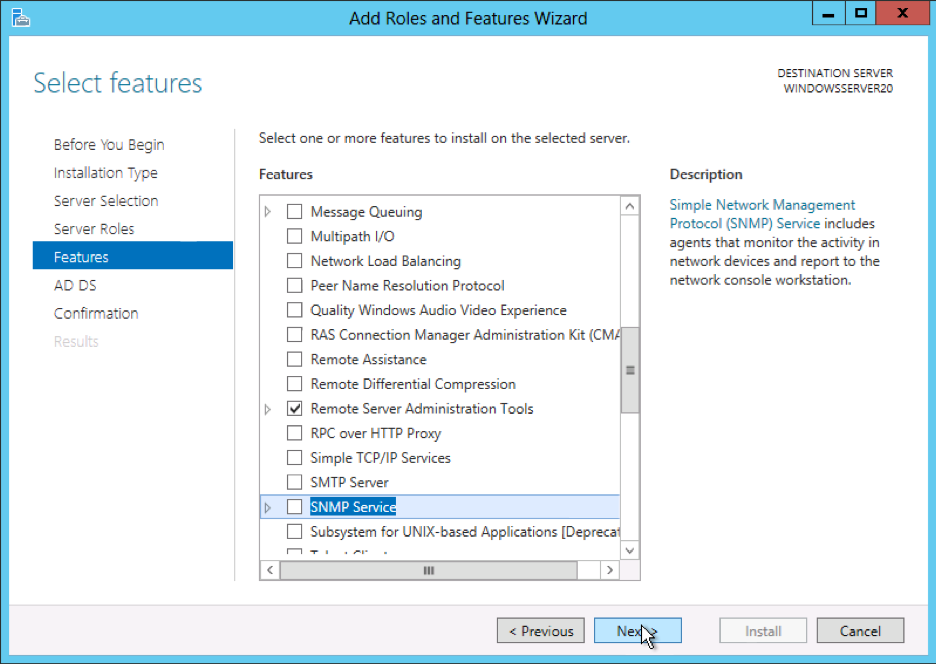
  6. Review and select optional features to install during the AD DS installation by placing a check in the box next to any desired features, and then click Next.

  7. Review the information on the AD DS tab and click Next.
  8. On the Confirm installation selections screen, review the installation and then click Install.
    Note: The installation progress will be displayed on the screen. Once installed, the AD DS role will be displayed on the ‘Server Manager’ landing page.

Start remote registry service

Before promoting the server to domain controller, the remote registry service must be started.
  1. Click Start > Control Panel.
  2. Under Services, right-click Remote Registry and open the Properties menu.
  3. From the *Startup type:** drop-down menu, select Automatic.
  4. Under Service Status, select Start.
The remote registry service will start.

Configure Active Directory

Once the AD DS role is installed the server will need to be configured for your domain.
  1. If you have not done so already, Open the Server Manager from the task bar.
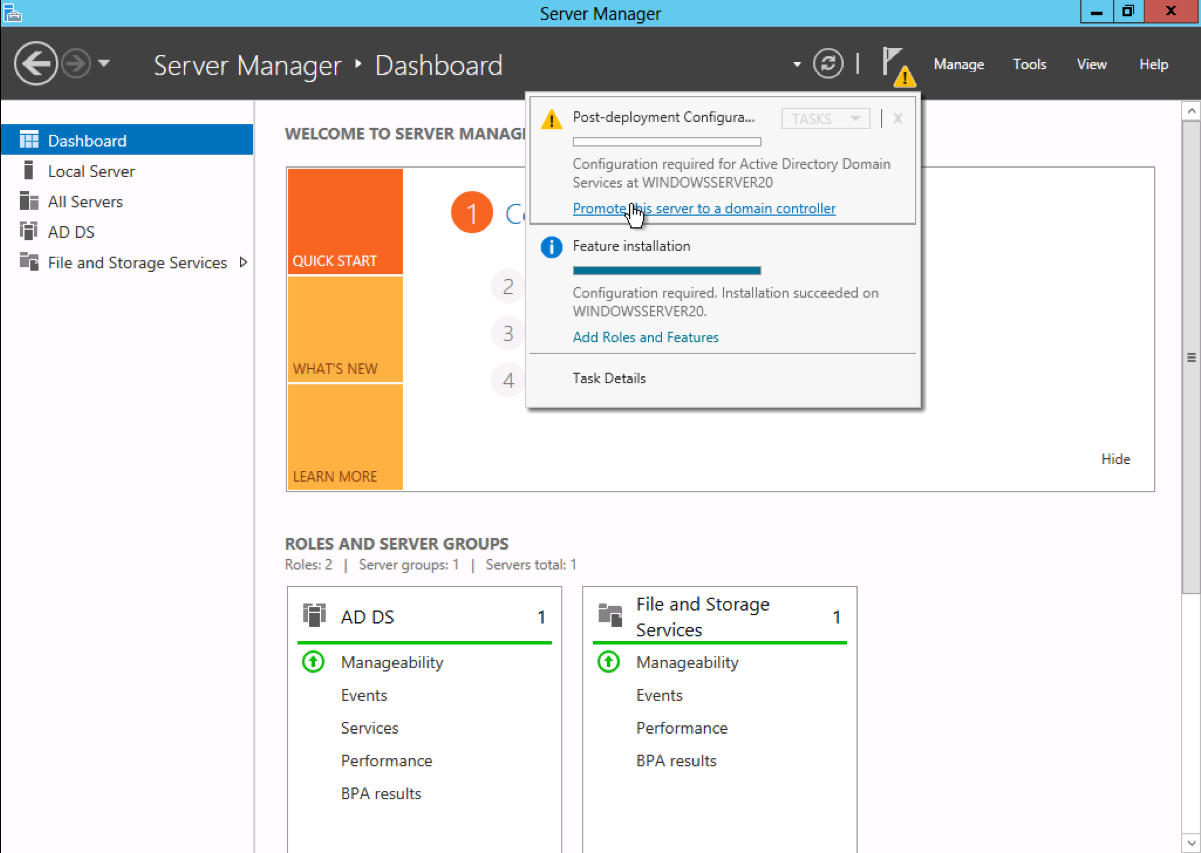
  2. Open the Notifications Pane by selecting the Notifications icon from the top of the Server Manager. From the notification regarding configuring AD DS, click Promote this server to a domain controller.

  3. From the Deployment Configuration tab select Add a new forest from the radial options menu. Insert your root domain name into the Root domain name field, and then click Next.
  4. Select a Domain and Forest functional level, and then input a password for the Directory Services Restore Mode (DSRM) in the provided password fields.
    The DSRM password is used when booting the Domain Controller into recovery mode.
    Note: The selection made here will have lasting effects to features and server domain controller eligibility. For further information on Domain/Forest functional levels, see official Microsoft documentation.
  5. Review the warning on the DNS Options tab and select Next.
  6. Confirm or enter a NetBIOS name and click Next.
  7. Specify the location of the Database, Log files, and SYSVOL folders and then click Next.
  8. Review the configuration options and click Next.
  9. The system checks to ensure all necessary prerequisites are installed on the system prior to moving forward. If the system passes these checks, proceed by clicking Install.
    Note: The server automatically reboots after the installation is complete.
After the server reboots, reconnect to it via RDP. Congratulations on successfully installing and configuring a Active Directory Domain Services on Windows Server 2012.
Readmore...
Sunday, 2 February 2014

10 tips for boosting your wireless router signal

3 comments
 
10 tips for boosting your wireless router signal
When it comes to "boosting" wireless speeds, there are actually two enhancements users typically seek: Distance and speed. It's great having a speedy wireless network, but if you only get great speed when you use a wireless client right next to the router and get no signal if you are 15 feet away, then speed doesn't mean so much. You need to boost the signal's range. If your device can barely open friends' Facebook pictures when you're in the same room as the router, then we're talking about problems with speed.
In general, speed and range issues can all be lumped together as performance issues. You want both your speed and range to be as robust as possible. There are several factors that can impact both aspects of performance.
Distance can certainly impede performance. You may have a room in your home or office that is simply too far from your wireless router. Even the way your home or office is structured could be a culprit when it comes to poor wireless performance. If the signals have to bounce around too many corners to reach your wireless devices, that can cause problems (although a technology in newer premium routers called beamforming can help direct a router's signal to wireless clients).

Interference with the signal can be big factor in performance, too. If you live in an apartment building, your home might be inundated with signals from everyone else's routers. Maybe structural interference is the culprit. If your washing machine and dryer are between your router and your laptop, that doesn't help. Maybe it's the software you're using. Routers need software updates just like everything else – and sometimes the firmware they initially ship with is improved with a later-released update.
These are just a few of the possible reasons your connection might be poor (or non-existent). Fortunately, there are many ways to extend your wireless signal, and most of them simply involve a bit of tweaking to your wireless network or adding some affordable components. In this article, we’ll walk you through ten of the most useful fixes for your connectivity woes.
Some of these suggestions require no additional hardware or software to purchase, while others may require a small or larger investment, depending on the particular performance problem you're experiencing. We’ll start off with free solutions, then move through the cheap to more expensive improvements.

1. Change the channel (free)

Not the TV's channel, but your router's. Wi-Fi routers operate on specific channels. When you set up a typical router, it usually chooses a certain channel by default. Some routers choose the least-crowded channel, but yours may not have. Check for yourself which Wi-Fi channel is the least crowded to boost the router's performance, perhaps boosting signal range. A good free tool to use is inSSIDer. Don't be put off by the graphs and excess information. What you want to focus on is the column "Channel." See how many routers in this area are on channel 6 in the image above? If your router is on the same channel, you want to switch it to a less-crowded one, like 4 or 1. You can change the channel of your router by going into its interface. All routers have different ways to access the interface, so check with your manufacturer on this score.


2. Update router firmware (free)

Updating router firmware is often overlooked by home users. Business networking devices usually display some sort of notification when newer software for the device is available for download. Consumer products such as home wireless routers, especially older routers, don't always offer this notification. Check often for firmware updates for your router. There is typically a section in the router's interface for upgrading the firmware. However, you often have to go to the router manufacturer's website and search for the firmware (most vendors make searching for firmware pretty easy) and then upload it through the router's interface. There's often accompanying release notes that tell you what the firmware helps to fix – and often the fixes are for connectivity problems.


3. Update adapter firmware (free)

Just like routers, network adapters on PCs and laptops are also subject to firmware updates. Remember, good wireless range and performance is dictated not just by the router but by the network adapter on clients (as well as other factors, but these are the two biggies.) Most laptops have on-board adapters. Go into your Network settings to find the name of the adapter (via the Control Panel in Windows) and then to that adapter manufacturer's site to make sure you have the latest firmware.


4. Change position (free)

Do you have your wireless router nestled up against your broadband modem tucked away in your entertainment centre in your basement that's converted into the family den? Well, move it if you have range issues. It isn’t necessary to have the router in close proximity to your modem. Ideally, a Wi-Fi router should be in a central location. You can purchase custom length Ethernet Cat 5 cable from any computer store (although if you do that, technically this is no longer a free option) if you need more flexibility in centrally positioning the router.


5. DD-WRT (free)

This one is for the more adventurous: DD-WRT is open source software for routers. It's known to ramp up router performance and extend the feature set beyond what typically comes with most routers. Not every router supports it, but the number of routers that are supported keeps growing. A word of warning, though – installing DD-WRT could possibly invalidate your router's warranty. Many manufacturers will not help you troubleshoot router issues once you have DD-WRT on them. Hence, this is not a recommended option for routers under warranty or in a business network.
There are also no guarantees that DD-WRT upgrades won't negatively affect a router. However, many users are finding it a free way to trick-out their routers. So, if you have an older, spare router laying around, or want to take the plunge to see if DD-WRT firmware helps your range issues on a newer router, check if it's supported on the DD-WRT site. Also note that it's not easy to remove DD-WRT from some routers without doing a lot research.


6. Set up a second router as an access point or repeater (cheap)

You can set up just about any router as a wireless access point. To do so, you need to connect the second router's LAN port to the primary router's LAN port. On the second router, you will want to give it the same addressing information as the primary router. For example, if your primary router's IP address is 192.168.2.1 and its netmask is 255.255.255.0; then you could make the second router's IP 192.168.2.2 and use the same netmask. It's also important that you assign the same SSID and security on the second router, and turn DHCP off on the second one as well.
Newer routers make this process easier. If you have a second router that's only about a year old, most of them can be set to operate in "access point" or repeater mode. Configuring is as simple as clicking a button. Check with your router's manufacturer or documentation.


7. Antennas (cheap)

Newer routers are increasingly manufactured with internal antennas. There are some that still have or support external ones, and these antennas can often be upgraded. Consider a hi-gain antenna, which you can position so that the Wi-Fi signal goes in the direction you want. Hawking Technology offers the HAI15SC Hi-Gain Wireless Corner Antenna, which the company claims boosts wireless signal strength from a standard 2dBi to 15dBi. Antennas like these can attach to most routers that have external antenna connectors, and are relatively cheap upgrades.


8. Dedicated repeater/extender (more expensive)

Most major wireless networking vendors offer devices that act as repeaters or wireless extenders. While they can extend a Wi-Fi signal, they can be tricky to setup, and can cause interference with the signal. They can also be on the more expensive side. Note that if you choose this option the best bet is to use an access point made by the manufacturer of your router (see tip number 10 for further details).


9. New router/adapter (more expensive)

How about getting a new router and adapter(s) altogether? Upgrading your home network to one of the latest 802.11ac routers, or an 802.11n model using the 5GHz band should give a noticeable performance improvement. 2.4GHz is said to actually have greater range than the 5GHz band, but that only becomes apparent when supplying wireless coverage to large areas such as university campuses. In our testing, we’ve found that for smaller areas like a typical home network, 802.11n and the 5GHz band maintained better throughput than 2.4GHz with most routers, at greater distances. This is certainly a more expensive option, but if wireless connectivity is crucial for you, it's a plausible one. If you’re pondering an upgrade to an 802.11ac device, we’ve got a group test of seven such routers you might want to check out (our benchmarks here show the benefit of ac, and indeed the benefit of 5GHz over 2.4GHz). Bear in mind that if you get a new router, to take full advantage of the speeds possible you’ll need to update client adapters to the same standard as well.


10. Stick to a single vendor (more expensive)

Vendors are quick to point out that their devices will work with other vendor's products. But it just makes sense that Cisco network adapters will work better with Cisco routers; Belkin adapters work optimally with Belkin routers and so on. If possible, try to limit your network devices to one vendor – that means not only you


Readmore...

10 TIPS TO HELP IMPROVE YOUR WIRELESS NETWORK

0 comments
 
Hi Everyone!!!.
Here I leave a few tips to improve your wireless network, they are short tips that can implement in your home or business


If the Windows operating system ever notifies you about a weak Wi-Fi signal, it probably means that your connection isn't as fast or as reliable as it could be. Worse, you might lose your connection entirely in some parts of your home. If you want to boost the signal for your wireless network (WLAN), try some of these tips for extending your wireless range and improving your wireless network speed and performance.

 
1. Position your wireless router, modem router, or access point in a central location

When possible, place your wireless router, wireless modem router (a DSL or cable modem with a built-in wireless router), or wireless access point (WAP) in a central location in your home. If your wireless router, modem router, or access point is against an outside wall of your home, the signal will be weak on the other side of your home. If your router is on the first floor and your PC or laptop is on the second floor, place the router high on a shelf in the room where it is located. Don't worry if you can't move your wireless router, because there are many other ways to improve your connection.

1.gif

2. Move the router off the floor and away from walls and metal objects (such as metal file cabinets)

Metal objects, walls, and floors will interfere with your router's wireless signals. The closer your router is to these obstructions, the more severe the interference, and the weaker your connection will be.


3. Replace your router's antenna

The antennas supplied with your router are designed to be omnidirectional, meaning that they broadcast in all directions around the router. If your router is near an outside wall, half of the wireless signals will be sent outside your home, and much of your router's power will be wasted. Most routers don't allow you to increase the power output, but you can make better use of the power. If your router’s antenna is removable, you can upgrade to a high-gain antenna that focuses the wireless signals in only one direction. You can even aim the signal in the direction you need it most.

2.jpg


4. Replace your laptop's wireless PC card-based network adapter

Laptops with built-in wireless networking capability typically have excellent antennas and don't need to have their network adapters upgraded. These tips are for laptops that do not have built-in wireless networking.

Wireless network signals must be sent both to and from your computer. Sometimes your router can broadcast strongly enough to reach your computer, but your computer can't send signals back to your router. To improve this, replace your laptop's PC card-based wireless network adapter with a USB wireless network adapter that uses an external antenna.

3.gif


5. Add a wireless repeater

Wireless repeaters extend your wireless network range without requiring you to add any wiring. Just place the wireless repeater halfway between your wireless router, modem router, or access point and your computer, and you can get an instant boost to your wireless signal strength.


6. Change your wireless channel

Wireless routers can broadcast on several different channels, similar to the way radio stations use different channels. In the United States and Canada, these channels are 1, 6, and 11. Just as you'll sometimes hear interference on one radio station while another is perfectly clear, sometimes one wireless channel is clearer than others. Try changing your wireless router's channel through your router's configuration page to see if your signal strength improves. You don't need to change your computer's configuration, because it can automatically detect the new channel.


7. Reduce wireless interference

The most common wireless technology, 802.11g (wireless-G), operates at a frequency of 2.4 gigahertz (GHz). Many cordless phones, microwave ovens, baby monitors, garage door openers, and other wireless electronics also use this frequency. If you use these wireless devices in your home, your computer might not be able to "hear" your router over the noise coming from them.

If your network uses wireless-G, you can quiet the noise by avoiding wireless electronics that use the 2.4 GHz frequency. Instead, look for cordless phones and other devices that use the 5.8 GHz or 900 megahertz (MHz) frequencies. Because 802.11n (wireless-N) operates at both 2.4 GHz and the less frequently used 5.0 GHz frequency, you may experience less interference on your network if you use this technology.


8. Update your firmware or your network adapter driver

Router manufacturers regularly make free improvements to their routers. Sometimes, these improvements increase performance. To get the latest firmware updates for your Cisco router, visit Cisco.com.

Similarly, network adapter vendors occasionally update the software that Windows uses to communicate with your network adapter, known as the driver. These updates typically improve performance and reliability.


9. Pick equipment from a single vendor

Although a Cisco router will work with a D-Link network adapter, you often get better performance if you pick a router and network adapter from the same vendor. Some vendors offer a performance boost of up to twice the performance when you choose their hardware (like their USB wireless network adapters).

If speeding up your connection is important to you, consider the next tip—upgrading your wireless technology.


10. Upgrade 802.11a, 802.11b, and 802.11g devices to 802.11n

Although wireless-G (802.11g) may be the most common type of wireless network, wireless-N (802.11n) is at least twice as fast and it has better range and stability. Wireless-N is backward-compatible with 802.11a, 802.11b, and 802.11g, so you can still use any existing wireless equipment that you have—though you won’t see much improvement in performance until you upgrade your computer or network adapter to wireless-G, too.

If you're using wireless-B or wireless-G and you're unhappy with your network’s speed and performance, consider replacing your router and network adapters with wireless-N equipment. If you're buying new equipment, definitely choose wireless-N. Cisco   Wireless-N routers, for example, are powerful, secure, and simple to set up.

I hope you consider this document useful,

Readmore...