Pages

Banner 468

Showing posts with label Windows Firewall: Windows Server 2012 / Server 2012 R2. Show all posts
Tuesday, 19 July 2016

Manage the Windows Server 2012 Firewall

0 comments
 
This article will detail how to perform the most common tasks with the windows firewall on Windows Server 2012. This includes managing the firewall settings and creating custom inbound and outbound firewall rules.

Manage firewall settings

The Windows Firewall with Advanced Security is a host-based firewall that runs on Windows Server 2012 and is turned on by default. Firewall settings within Windows Server 2012 are managed from within the Windows Firewall MMC (Microsoft Management Console). To review and set Firewall settings perform the following:
  1. Open the Server Manager from the task bar.
  2. In the right-hand side of the top navigation bar, click Tools and select Windows Firewall with Advanced Security.
  3. First review the current configuration settings by selecting Windows Firewall Properties from the MMC landing page. This allows access to modify the settings for each of the three firewall profiles, Domain, Private, and Public, as well as IPSec settings.

Applying Custom Rules

Custom Rules allow the finest level of control over inbound and outbound traffic to your Windows Server 2012.
  1. If you have not already done so, load the Windows Firewall MMC by opening the Server Manager from the task bar, clicking the Tools menu, and selecting Windows Firewall with Advanced Security.
  2. Select either Inbound Rules or Outbound Rules under Windows Firewall with Advanced Security on the left side of the management console.
    Note: This will provide a listing on each of the currently configured firewall rules. Rules that are currently enabled are denoted by green checkbox icon, while disabled rules display a grey checkbox icon. Right-clicking a rule will allow you toggle enable/disable.
  3. From the right side of either the Inbound Rules or Outbound Rules tab click New Rule.
    The new rule wizard launches.
  4. Select Custom from the Rule Type radial button and click Next.
  5. Select the Program association for the Custom Firewall Rule as either All programs or specify the path to a program and click Next.
  6. From the Protocol type field select the protocol type and click Next.
    Note: This walkthrough uses TCP on port 80 (HTTP) for example purposes.
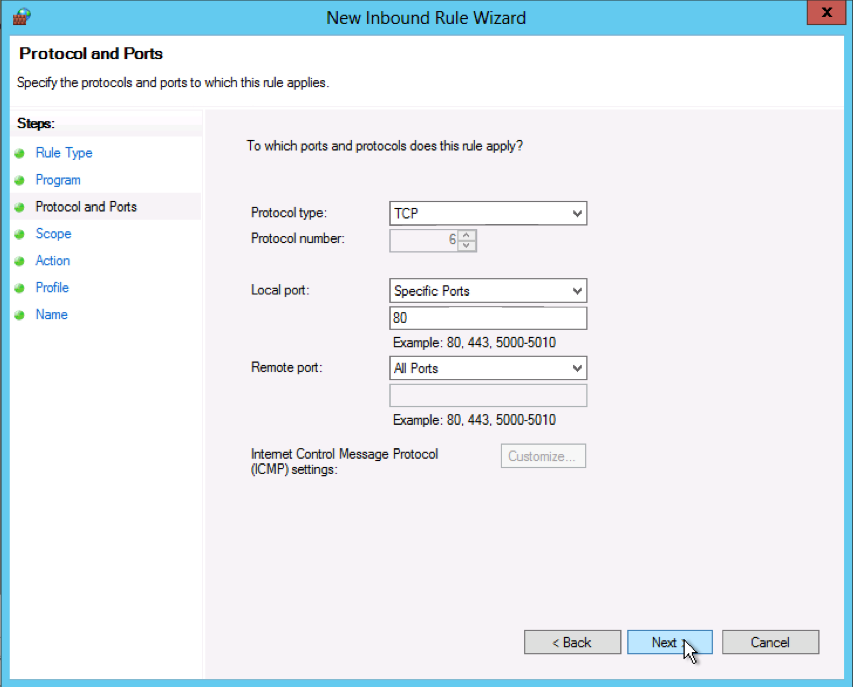
  7. Select an IP address association for both local and remote addresses and click Next.
  8. For traffic matching the IP address(es) you specified in the previous step, select whether to Allow the connection, Allow the connection if it is secure, or Block the connection and click Next.
    Note: If you choose to allow the connection if it is secure, you can customize this further by clicking Customize.
  9. Select which profiles you want to associate with the custom rule, Domain, Public, or Private, and click Next.
  10. Provide a name for your Firewall rule and an optional description and click Finish.
  11. After you finish creating the rule, it is automatically enabled.
The firewall rule can be found on the corresponding Rule tab, either inbound or outbound depending on the type created. To disable or delete the rule find the rule in the MMC, right-click it, and select either Disable Rule or Delet
Readmore...

Windows Firewall: Windows Server 2012 / Server 2012 R2

0 comments
 
In continuation of our Windows Server 2012 and Windows Server 2012 R2 series, we will be discussing firewalls and some of the new features made available in the latest version of Windows Firewall.  While a firewall makes for a great defensive measure against malicious network traffic, it can cause problems for applications that rely on network connectivity.  As this is true for many Blackbaud applications, we will be covering some of the common Blackbaud product specific issues that involve firewall configurations and how to remedy them.
What is a Firewall? 
A firewall is a piece of software or hardware device that is used to protect a network and nodes connected to that network from external (as well as internal)threats.  The basic functionality of a firewall is to drop (or block)network packets that do not correspond with allowed traffic configured on the firewall by a network administrator.  While this article focuses mainly on the interaction between Blackbaud products and the Windows Firewall, it is worth noting the distinction between a network firewall and a host-based (software) firewall.  While both types of firewalls are used to protect systems, they are implemented differently.  For instance, in a host-based firewall (ex. Windows Firewall), the firewall is a component that isinstalled to the operating system.  While a network firewall (typically a hardware appliance) sits between your internal and external network and is used to protect the all assets that are part of the Local Area Network (LAN).
What is the Windows Firewall?
The Windows Firewall is a host-based, stateful firewall that is built right into the Windows operating system.  The first implementation of the Windows Firewall was in Windows XP Service Pack 2 and included features such as security logging, program and port exceptions, and ICMP transmission rules.  While the initial feature-set was sufficient at the time, the Windows Firewall has grown into a more robust security tool.  With newer iterations of the Windows Firewall not only has Microsoft greatly improved the granularity of protection rules, but they have also implemented new features such as IPSec protection settings and extended PowerShell integration.
What’s new for Windows Firewall in Windows Server 2012 and Windows Server 2012 R2?
Windows Server 2012 and Windows Server 2012 R2, while offering a very similar Windows Firewall experience as previous iterations, has improved in the following ways:
1. Windows Store app network isolation – Previously, you could only enforce security rules based on programs or ports.  With Windows Server 2012 and Windows Server 2012 R2, you can now configure security rules for isolating Windows Store apps.  For example, if you wish to only allow a Windows App to access the local network and not connect to the Internet, this is now possible.  For more information regarding this new feature
2. PowerShell cmdlets – With new, extensive cmdlets, you can now completely configure your Firewall policy from the Windows PowerShell environment.  Remote management of firewall rules is also now possible with Windows Remote Management (WinRM)which is enabled in Windows Server 2012 by default.  For more information regarding the new PowerShell commands, please see the following Microsoft article:
3. Internet Key Exchange version 2 (IKEv2) for IPsec transport mode – IKEv2 support has been improved upon and now supports features such as IPsec end-to-end transport mode connections. For more information regarding the changes to IKEv2 support, please visit the following Microsoft article:

SQL Server and Windows Firewall Exceptions
In Windows Server 2012 and Windows Server 2012 R2, the Windows Firewall is enabled for all network interfaces and for all network location types by default (for more information regarding Network Location Awareness.  While the Windows Firewall can be disabled, it may not be the best decision to make from a security standpoint (depending on your organization).  However, some organizations rely on third party firewall solutions and have no practical use for the Windows Firewall.   For those that do use the Windows Firewall, it would be best to configure exception rules to only allow specific programs or ports and block any unsolicited network traffic.
For example, a common issue customers bring to our attention in Support is SQL Server connectivity.
When logging into The Raiser’s Edge, you may receive one of the following errors:
  • “Error: Unable to establish database connection. [Microsoft][ODBC SQL Server Driver][DBNETLIB]SQL Server does not exist or access denied. Native error: 17 [Microsoft][ODBC SQL Server Driver][DBNETLIB]ConnectionOpen (Connect()). Native error: 53”.
  • “Error: Unable to connect to SQL Server. Please check BB140810”
When logging into The Financial Edge / Education Edge, you may receive a similar error:
  • “Error: Unable to establish database connection. Please refer to the Knowledge Base article BB140810
The frequent cause of these errors is due to the firewall configuration between workstations and the server, especially if the error occurs on a brand new server installation.   In order for The Raiser’s Edge or The Financial Edge / Education Edge to communicate with SQL Server it needs to be able to make a connection using the Open Database Connectivity (ODBC) driver.  If the Windows Firewall on the server is configured to block the SQL ports your server is listening on, then none of the workstations will be able to connect to your database.
To resolve this issue, the appropriate TCP and UDP port exceptions for SQL Server need to be made in the firewall.  By default, SQL Server communicates using TCP port 1433.  SQL Server also uses UDP port 1434 for automatic discovery of SQL Server by workstations.  However, your SQL Server may be configured to use a different SQL Server connectivity port.  To check which port SQL Server is using for database connectivity, please follow the Knowledgebase article:
How to find the port being used by SQL Server (includes video) (BB134012)
Once you have determined the proper SQL Server connectivity port, you will need to add this port and UDP port 1434 to the Windows Firewall exceptions.  As the configuration steps are the same for Windows Firewall in Windows Server 2012 and Windows Server 2012 R2 they were in Windows Server 2008 R2, please follow the steps laid out by Microsoft to allow SQL Server access through the Windows Firewall:
How do I configure my the Windows Firewall for use with Mobile Service for The Raiser’s Edge or The Raiser’s Edge ManagementEvent App? 
The Raiser’s Edge mobile applications may also require configuration changes to your Windows firewall or network firewall.  Some of our products, such as Mobile Service for The Raiser’s Edge and The Raiser’s Edge Event ManagementApp in particular, require access to the Windows Azure Service Bus in order to communicate between the Raiser’s Edge database and external devices.
While both of these applications work independently from one another, they both utilize the Windows Azure Bus in order to communicate with external devices.  Windows Azure is a Microsoft-provided Platform as a Service that we use to securely pass data between your database and the applicable device.  Windows Azure works as an encrypted tunnel, utilizing 128-bit encryption to transfer information.   For more information regarding Windows Azure,
To better demonstrate how both applications connect to The Raiser’s Edge database utilizing Windows Azure please see the following diagram:
Server201212.10blogpic1


A typical error you may see when attempting to log in to The Raiser’s Edge Mobile application is:
“Error: Cannot open database “[Database Name]” requested by the login. The login failed”
In order to make this connection possible with the Windows firewall enabled (as well as a network firewall), you will need to configure exceptions outbound for TCP ports 443 and ports 9350 through 9354 (for Windows Azure).
While the process for allowing ports through the Windows Firewall was covered in a previous section, the procedure for allowing these ports through your network firewall will vary based on vendor.   It is best to consult your network administrator or vendor regarding this process.  For more information regarding The Raiser’s Edge Event Management App and Mobile Service for The Raiser’s Edge, please see the following Blackbaud Knowledgebase articles:
What ports need to be opened in a firewall(s) for RE mobile or the RE Event app to work? (BB736217)
Is data encrypted in RE: Mobile? (BB736621)
Conclusion
While we are unable to cover all scenarios involving a network firewall or Windows Firewall, please check out our knowledgebase for more information regarding firewall configurations for your product.    Also, if you have any questions regarding the topics discussed in this article, please leave a comment below and we will be glad to follow up!
Readmore...